

ENCS email
The Gina Cody School of Engineering and Computer Science (aka ENCS) has a legacy email system, which is required for various automation purposes. However, regular users can also use it if they wish.
If you don't intend to use the ENCS email system, please forward your ENCS email to your regular address, to avoid missing announcements. You can do this using the GCS Webmail interface, as shown in the FAQ “How do I forward my ENCS email to another address?” below.
All email addresses at GCS, including those in individual departments, live on a single system. This means that mail for you at these addresses (and a few more for legacy systems) will all be delivered to the same account:
[email protected]
[email protected]
[email protected]
[email protected]
[email protected]
[email protected]
[email protected]
[email protected]
[email protected]
[email protected]
[email protected]
[email protected]
In the above, “username” refers to your ENCS username, which may or may not be the same as your Concordia Netname.
By default, incoming mail is sent to your inbox folder. Be aware that your inbox folder has a quota limit of 87 MB. If you exceed this limit, further incoming email messages will be bounced back to the sender.
You can check your inbox quota by using the online quota check tool (requires ENCS username/password). Alternatively, you can check it using the "quota" command at the Unix/Linux prompt. Among the items in the output, the one labeled "INBOX" indicates your current inbox quota usage.
The inbox folder is meant only to receive new email before it is moved into other mail folders. The inbox folder resides in /var/spool/mail/u/username, (where username is replaced with the person's actual ENCS username, and u is the first letter of this username), which can be accessed directly by logging into login.encs.concordia.ca. All of your other mail folders (e.g. Trash, Sent, Drafts, and custom mailboxes) reside in the mail sub-directory of your Unix/Linux home directory:
| Unix/Linux | |
| Windows | U:\mail |
Each non-inbox mail folder counts towards your standard ("home and web") disk quota, not towards your inbox quota. Thus, if you receive a lot of mail or very large messages, you can avoid hitting your inbox 87MB quota limit by configuring your mail to be delivered to another folder; see the "Email - FAQ" section below for instructions.
Only connections from within Concordia are allowed, including the Concordia VPN, the Concordia wireless network, and of course the ENCS networks.
Note that you can also tunnel in with ssh, as explained in https://www.concordia.ca/ginacody/aits/support/faq/ssh-tunnel.html
To access your ENCS email, you can use any client software that supports the secure IMAP (IMAP/S) protocol; we list some examples below.
- GCS Webmail service [https://webmail.encs.concordia.ca/]
- Thunderbird; please follow these steps [www.concordia.ca/it/services/encs-user-account.html#thunderbird-config]
- Microsoft Outlook; please follow these steps [www.concordia.ca/it/services/encs-user-account.html#outlook-config]
- Pine (alpine): this text-based menu-driven program is available on all ENCS-managed servers and desktops, and is already configured correctly. For information on how to use Pine, please see: https://www.cs.bu.edu/teaching/unix/pine/
- nmh and exmh: these are highly customizable but rather old-fashioned mail clients. They are available on ENCS-managed servers and desktops. For information on how to use them, see Using the MH email clients (nmh and exmh)
- Others: to configure IMAP/S on any email client, use these values:
- IMAP/S (Secure IMAP) server: mail.encs.concordia.ca
- IMAP directory prefix: mail
- SMTP server:
- Within the ENCS network: smtp.encs.concordia.ca
- On the Concordia VPN: smtp.concordia.ca
- Outside Concordia (from home): Use the SMTP server name of your own internet provider
- IMAP/S (Secure IMAP) server: mail.encs.concordia.ca
GCS provides a Mailman mailing list service to faculty and staff. www.concordia.ca/it/services/encs-mailing-lists.html
It is possible to considerably automate your email processing at GCS: you can forward some or all messages, auto-respond to some or all messages, selectively file incoming messages into particular folders, reduce incoming spam, and more. Please read ENCS mail delivery automation for more information.
Email FAQ
GCS email forwarding can be set up in Webmail (https://webmail.encs.concordia.ca) (requires GCS username/password) by following the steps below:
Go to Settings → Filters → Create.
- Enter a Filter name, such as Email forwarding to Concordia Email.
- Under Scope, choose all messages to forward all incoming mail.
- Under Actions, choose Redirect message to and enter the full destination email address.
- Leave Filter enabled on and click Save. Send a test message to your GCS address from another account and confirm it reaches the destination.

If you don't want to use Webmail to manage your mail filtering, here are some alternative ways to set forwarding, all of which use SRS (Sender Rewriting Scheme), which we recommend:
- Directly via a “.forward” file:
"|/local/bin/fwd [email protected]"
- From your “.procmailrc” file:
:0
| /local/bin/fwd [email protected]
- In a manually-maintained SIEVE script:
require ["vnd.dovecot.pipe"];
pipe "fwd" ["[email protected]"];
If your forwarding rule of GCS mail forwarding appears under Settings → Filters, select it, turn off Filter enabled, and click Save. You can turn the rule back on later.
Alternatively, if you've set forwarding manually in a “.forward” file, in a “.procmailrc” file, or in a manually-maintained SIEVE script, just delete the forwarding commands that you added.

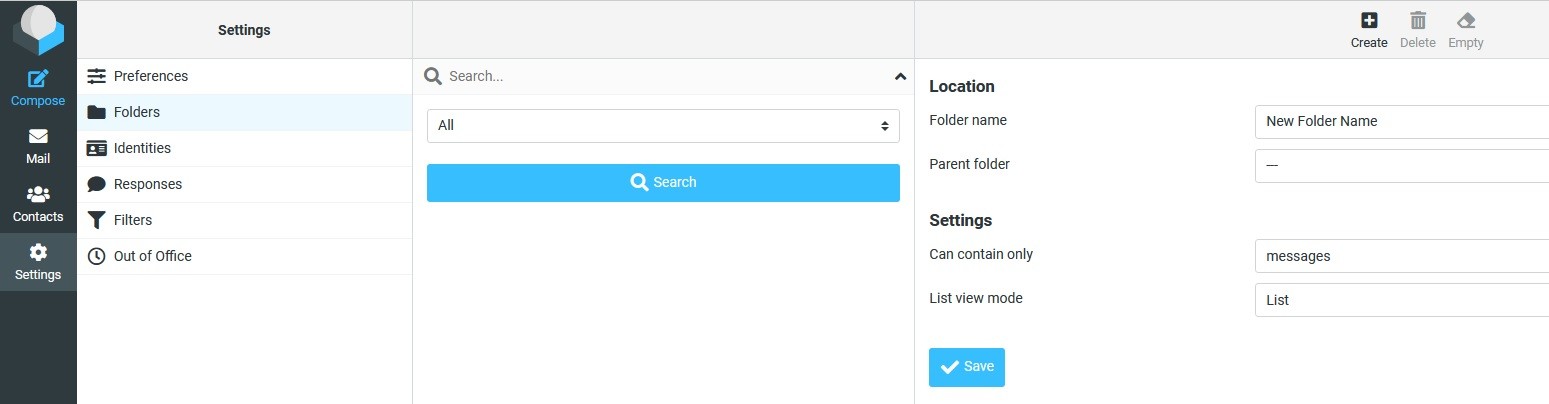
- If you need a new destination folder, go to Settings → Folders → Create, enter a Folder name, and click Save.
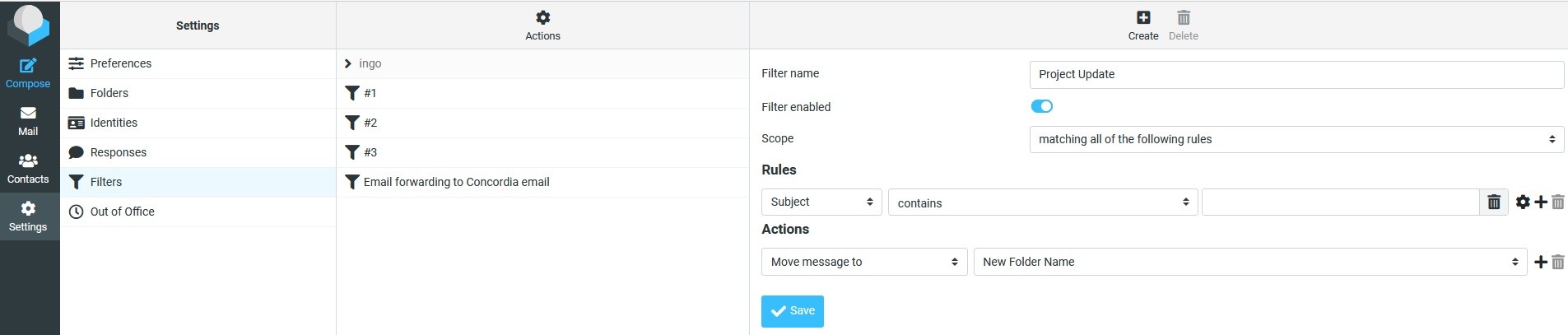
- Go to Settings → Filters → Create and name the rule.
- Under Scope, set a condition. For example, choose Subject and contains, then enter a phrase such as Project update.
- Under Actions, choose Move message to and select the destination folder. Leave Filter enabled on and click Save.
- Send a message that matches the condition and check the destination folder.
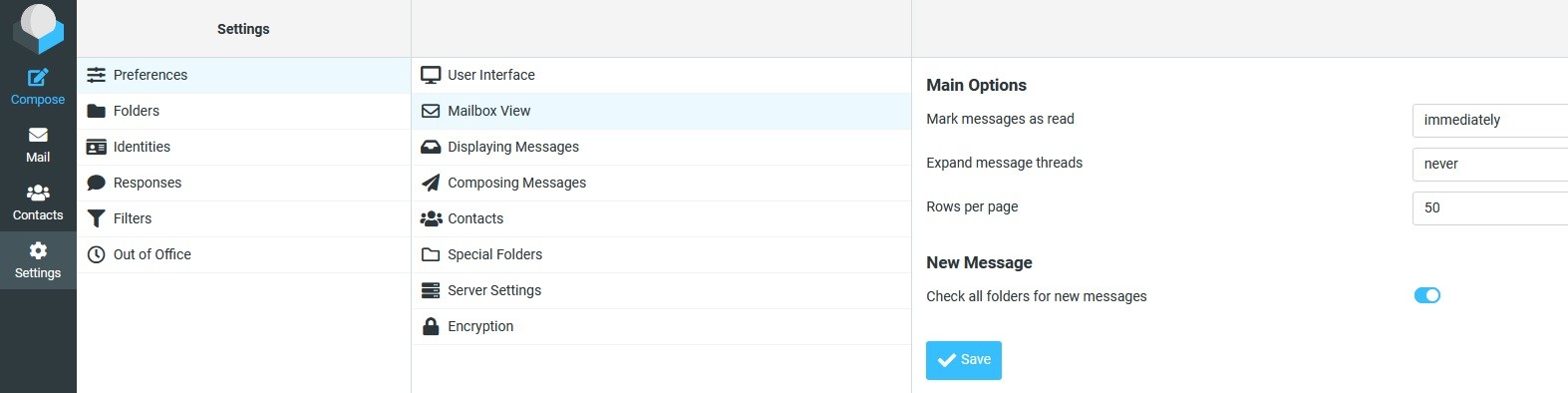
To check other folders for new mail, turn on Check all folders for new messages under Settings → Preferences → Mailbox View
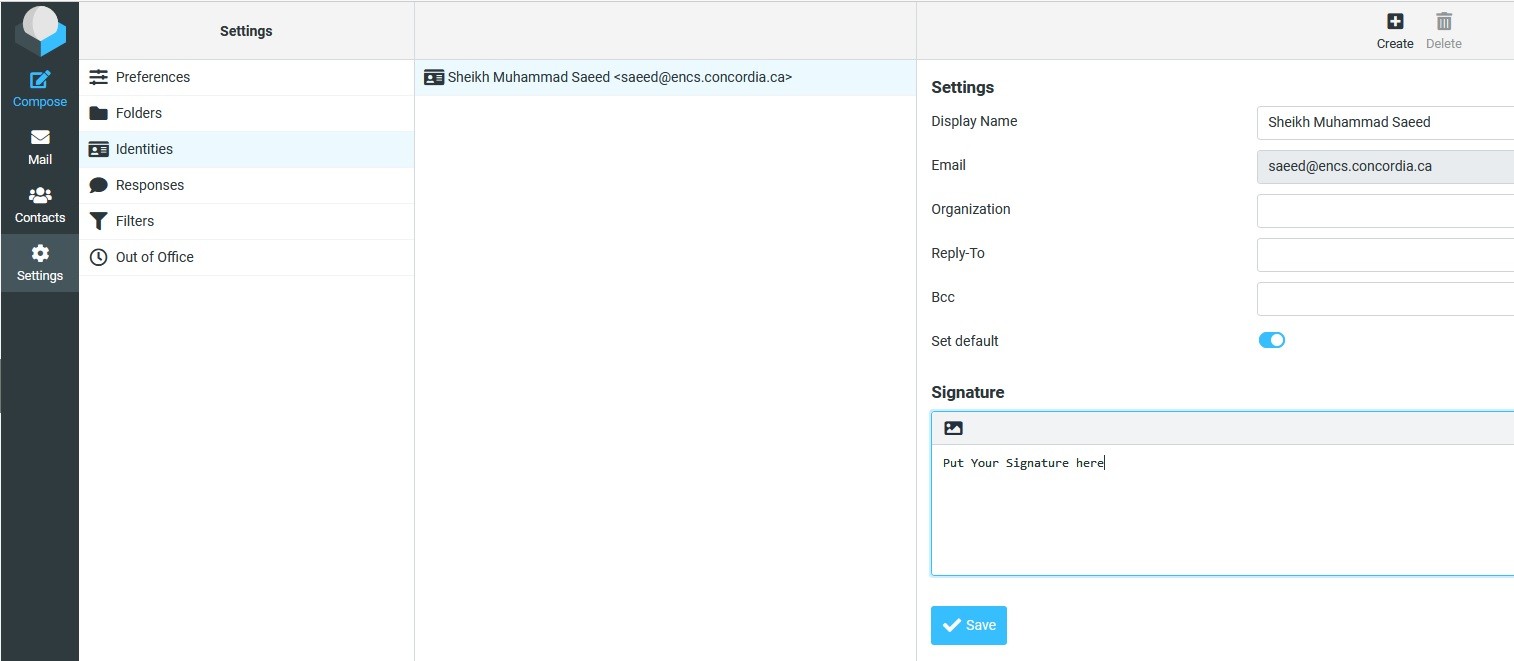
Go to Settings → Identities, select the sender identity you use, enter your text under Signature, and click Save.
To choose when the signature is inserted, go to Settings → Preferences → Composing Messages → Automatically add signature. Choose an option and click Save.

Click Compose to check how it appears in a new message.
No, your ENCS email quota (87MB for all users) cannot be increased. When your inbox folder is full, new email messages will be bounced back to the sender, and you will not receive them. Therefore, please monitor your ENCS email regularly or forward your ENCS email to another address.
If you expect to receive a lot of mail, and have trouble keeping your inbox from becoming full, you can redirect the incoming email to another email folder — the other mail folders consume your “home and web” disk quota, which is much larger
than your “inbox” quota.
It's possible that your inbox is still over quota. You can check this using the ENCS web-based quota checking tool.
If that's the case, the reason is usually that old messages have not been permanently removed from your inbox, but rather they are just marked as ‘deleted’.
The solution to this problem is to purge your “deleted” messages (which are really only flagged as to be deleted), to really delete them. To do this, log into Webmail (requires ENCS username/password), and:
- Make sure you're in the “Mail” interface (click on “Mail” in the top menu bar if necessary).
- Go to the folder you need to purge by clicking on its name in the left sidebar; usually this is “Inbox”, at the top of the left sidebar). Messages flagged as deleted should appear in the summary with a line through them.
- Select the “Other” dropdown menu. This is the item right above “Date”, not the “Others” item in the top menubar! In the resulting dropdown menu, click on “purge deleted”.
If you are unable to purge the deleted messages using WebMail, you can try moving your inbox contents to your Unix home directory.
In the instructions below, replace “username” with your ENCS username, and “u” with the first letter of your ENCS username.
- Log in with ssh to the host “login.encs.concordia.ca”
- Move your inbox folder contents to a new folder in your Unix mail directory:
mv /var/spool/mail/u/username ~/mail/old_inbox - Refresh the display of your mail folders in your mail client. You should see a new folder named “old_inbox”.
- You can now use your mail client to move or delete messages in “old_inbox”.
- Once you've recovered all useful messages from “old_inbox” and moved them to other folders, you can delete that folder.
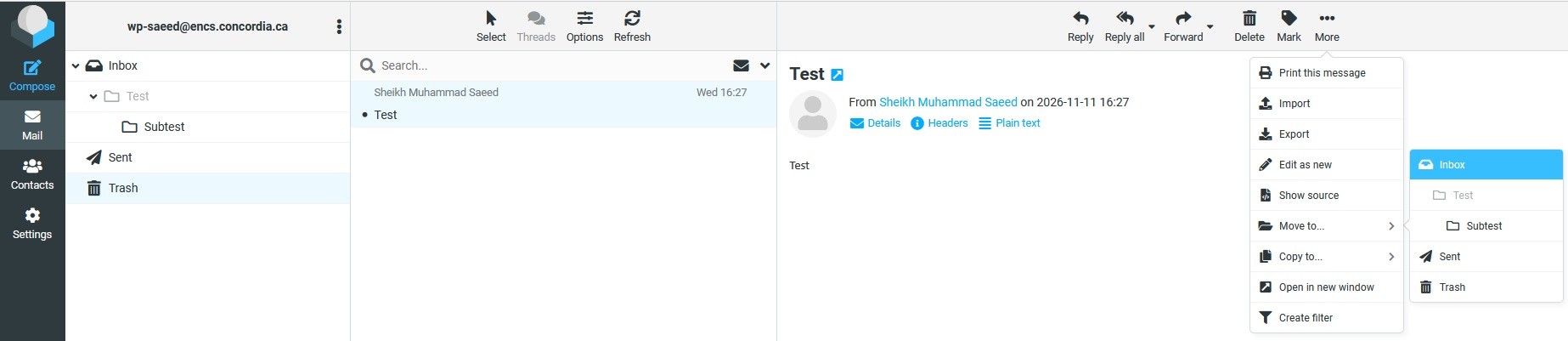
Open Trash, select the message, and choose More → Move to.... Select Inbox or another destination folder.
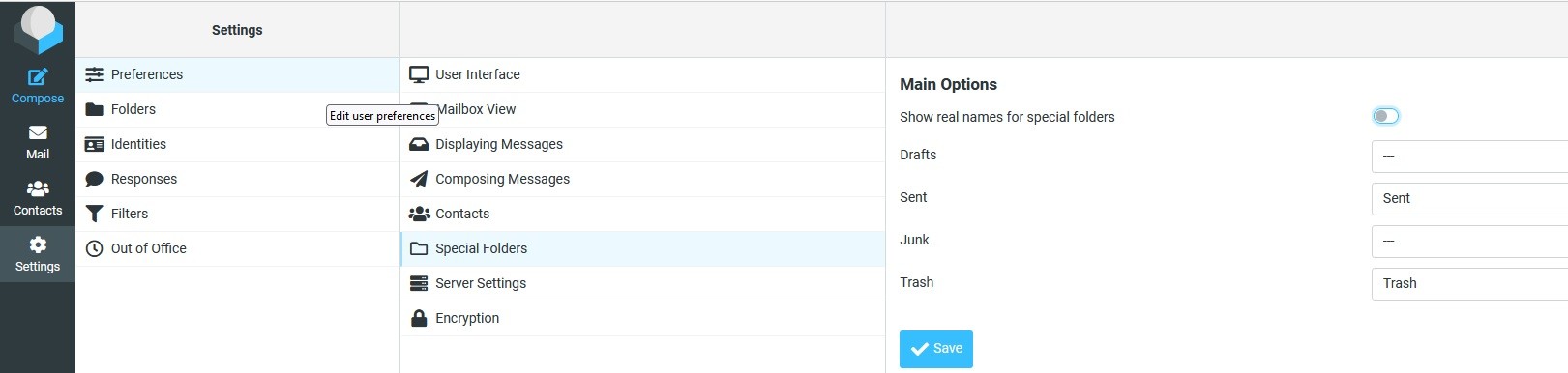
To check which folder is assigned to Trash, go to Settings → Preferences → Special Folders.
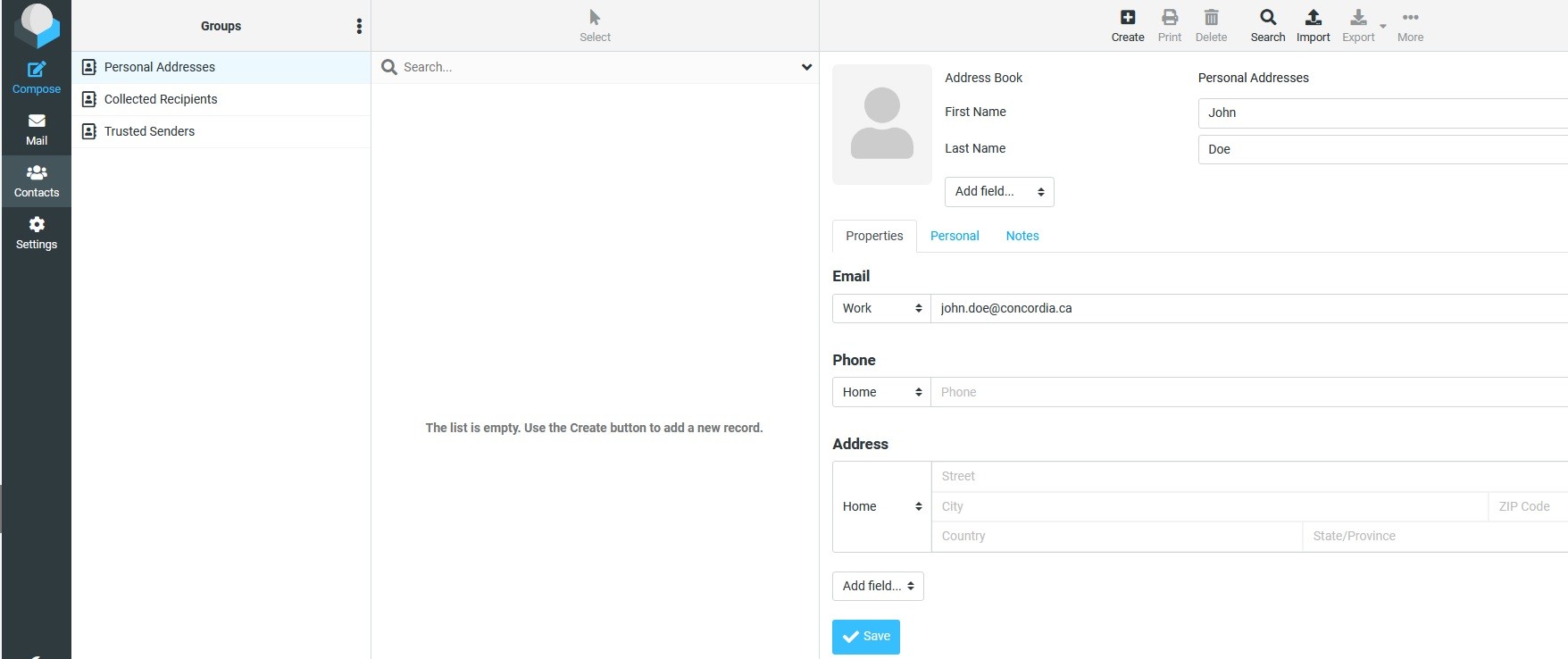
Use Contacts → Personal Addresses → Create to add a contact.
- Enter the person’s name and full email address, then click Save.
- To update a contact, go to Contacts → Personal Addresses, select the contact, and click Edit. Make your changes and click Save.
- To add someone from a message, open the message and click Add contact beside their email address.
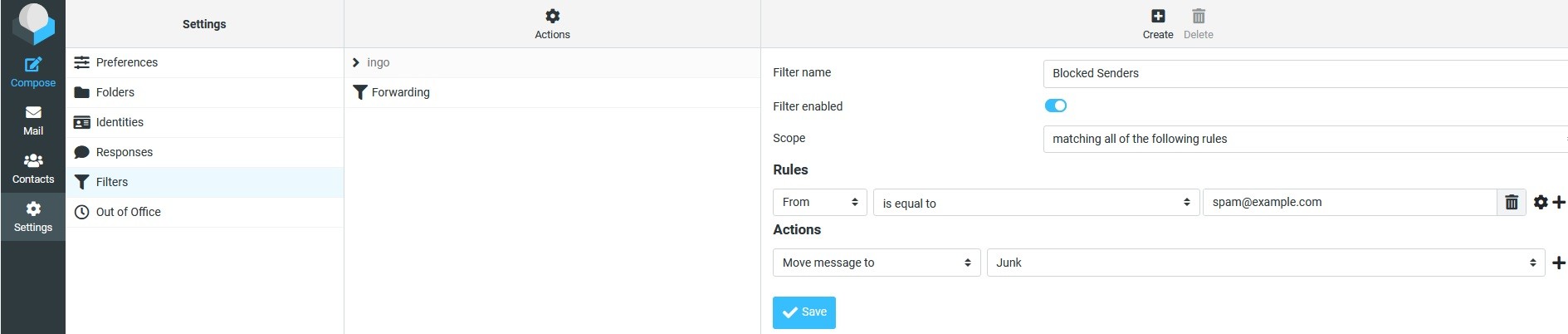
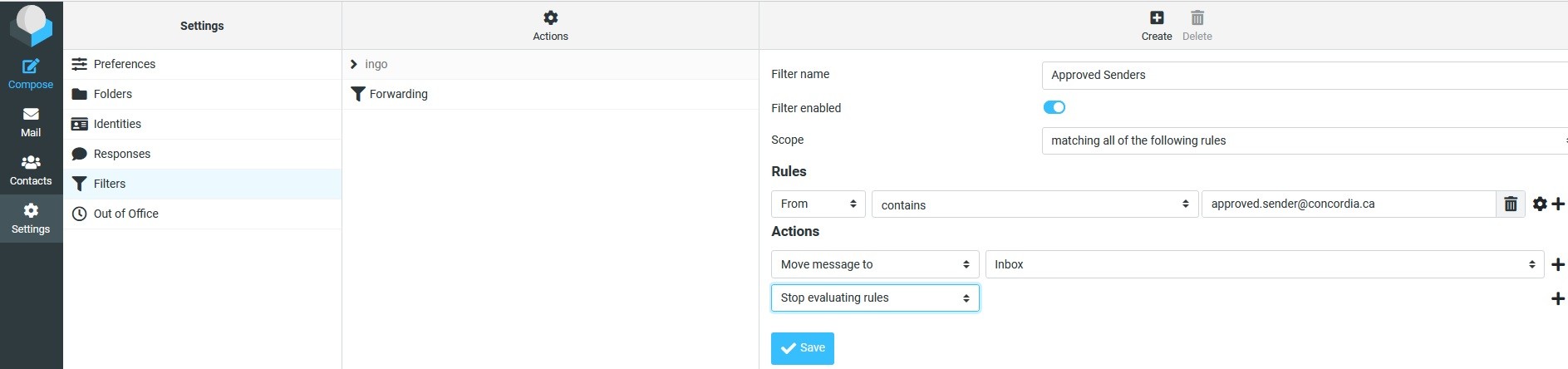
Use Settings → Filters → Create to make a rule for an approved or blocked sender.
- Give the rule a name. Under Rules, choose From and is equal to, then enter the sender’s full email address.
- Under Actions, choose Move message to. For an approved sender, select Inbox or another folder where you want the mail delivered.
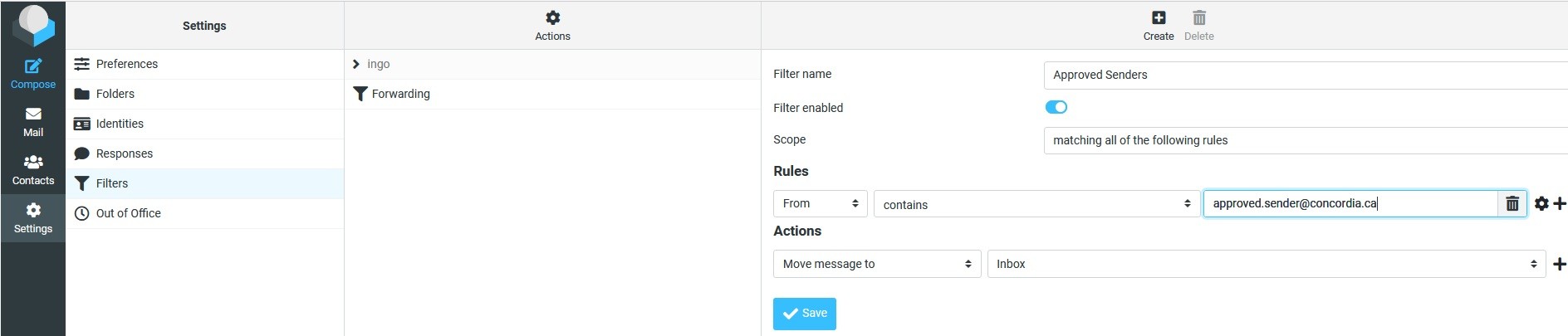
For a blocked sender, select Junk or a folder you can review later.
- If you want the rule to take precedence over later filters, add Stop evaluating rules after the move action. Leave Filter enabled on and click Save.
Use Settings → Out of Office to set up an automatic reply.
- Enter your reply in Body. You can also enter a Subject.
- To schedule the reply, enter a Start time and End time.
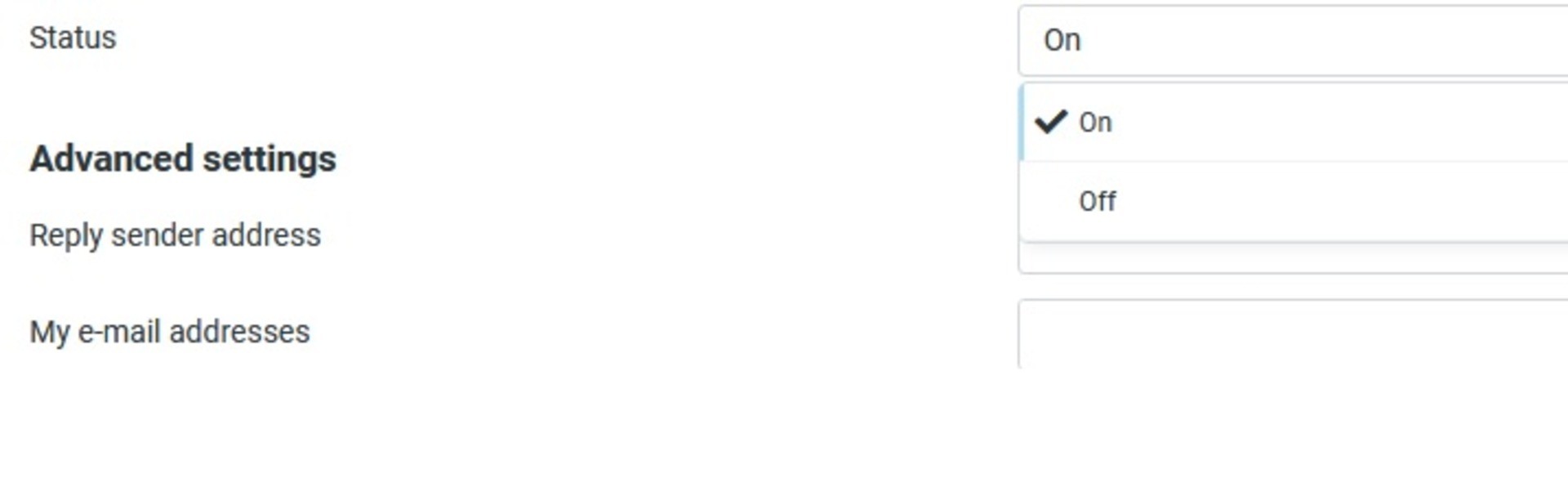
- Set Status to On and click Save.
- To change how often the same sender receives a reply, go to Settings → Out of Office → Advanced settings → Reply interval, choose an interval, and click Save.

- To turn off the reply, go to Settings → Out of Office, set Status to Off, and click Save.
Large attachments can cause problems for email servers, especially when sent to a large number of recipients. Mailing lists, for example, often reject very large email messages. To send a large file via email, you must upload the attachment to the ENCS File Sharing Service and send the link via email. The email recipient will simply have to click on that link to download the attachment.
How to access the ENCS File Sharing Service:
- Visit https://fis.encs.concordia.ca/share
- Log in to the service with your ENCS username and password.
- Click on “Browse“ and select the file to upload.
- The name of the selected file appears next to the “Browse” button.
- Click on “Upload” to upload the file and create the shareable link.
- A link to the uploaded file will appear on the screen.
- An email containing the link will be sent to your ENCS email address.
- Send the link to the document via email.
Example:
- Visit https://fis.encs.concordia.ca/share
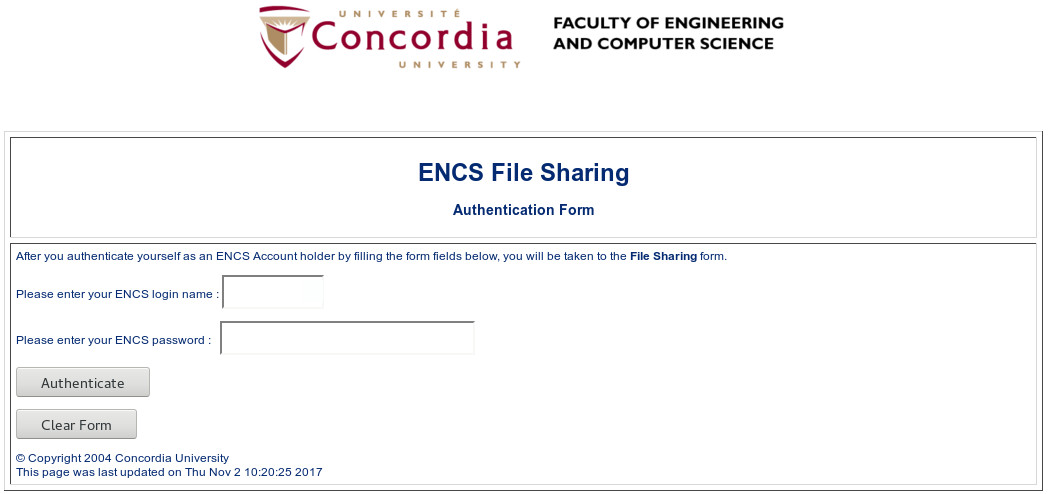
- Log into the service with your ENCS username and password.
- Click “Browse” and select the file to upload.
The name of the selected file should appear next to the “Browse” button.
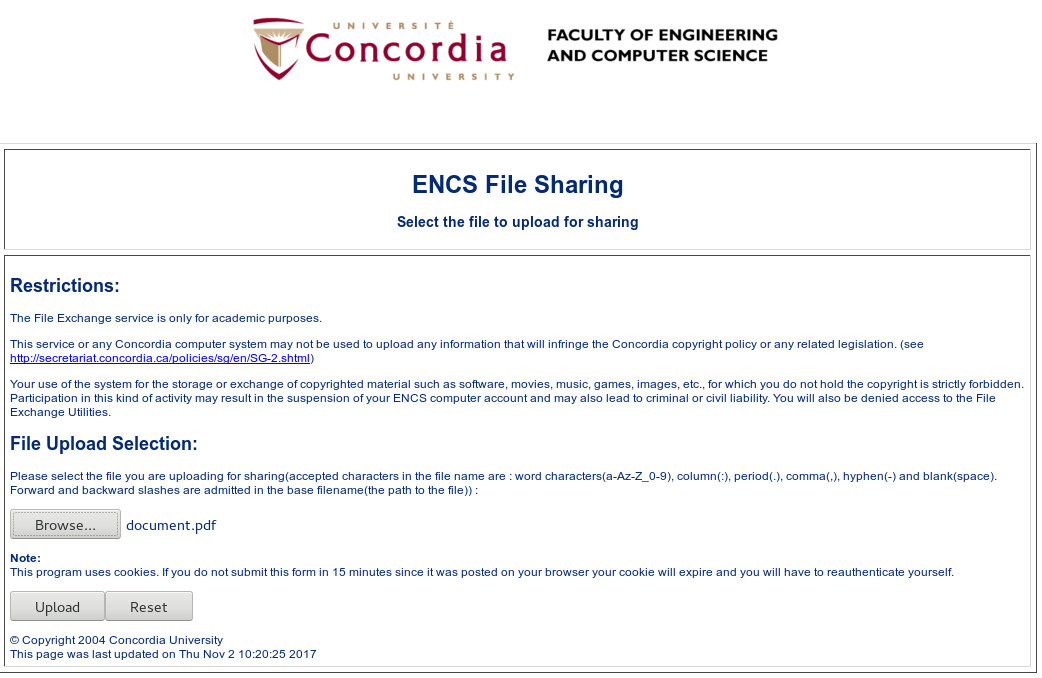
- Click on “Upload” to upload the file and create the shareable link.
A link to the uploaded file will appear on the screen.
An email containing the link will be sent to your ENCS email address.
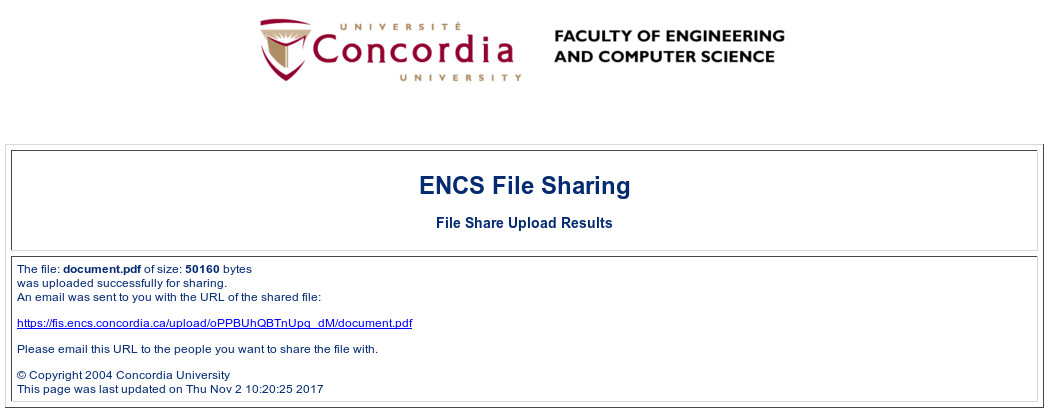
- Send the link to the document via email.
One of the ways to back up your ENCS email to an external device is to use an email client, like Mozilla Thunderbird.
- Configure an email client (Mozilla Thunderbird) on your personal machine.
- Create a local folder:
- Right click your account name in the left hand side bar within Thunderbird
- Select “New Folder”
- Enter a name for the folder and choose its parent folder from the drop down list
- Click on “Create Folder”.
- Right click on the local folder you created and click on “Properties”
- Verify that the folder’s Location is on your computer
- Copy (or drag and drop) the emails you wish to back up from your inbox to the local folder you just created.
Another method is to back up your ENCS Inbox to your home computer.
In this example, “username” represents AN ENCS username and “u” is its first letter.
- Log in to login.encs.concordia.ca.
username’s ENCS Inbox is located at /var/spool/mail/u/username - Create a folder to store your back up file, for example /home/u/username/Inbox_backup.
- [grace] [/home/u/username] > mkdir Inbox_backup
- [grace] [/home/u/username] > cp /var/spool/mail/u/username Inbox_backup
- The above commands created a file named username in the Inbox_backup directory.
If you would like to use Mozilla Thunderbird to access the contents of your email backup, e.g., /home/u/username/Inbox_backup/username
Copy the username file and place it in the system’s Mozilla Thunderbird Local Folders.
Right click on the Local Folders in the left hand sidebar and select “Settings” to determine the location of the local directory.Launch Thunderbird.
A folder named Inbox_backup should appear in Local Folders containing all of your backup Inbox email.
If you would like to back up email folders other than your inbox, (i.e., Sent, Trash...), those folders are located in /home/u/username/mail/.
- Webmail: select the “plus” symbol at the top right of the message pane, and from the resulting dropdown menu, click on “View Source”.
- Mozilla/Netscape/Thunderbird: “View”, “Page Source”
- Pine: Press “h” to toggle full headers
- Most other clients: https://mxtoolbox.com/Public/Content/EmailHeaders/